Theme Blocks
Shopify Theme Blocks, your ultimate solution for downloading and implementing widgets. Elevate your e-commerce game with our user-friendly app.
Our Documentation is a valuable asset to help you unlock the full potential of our app. If you have any questions or need further assistance, please don't hesitate to reach out to our support team.



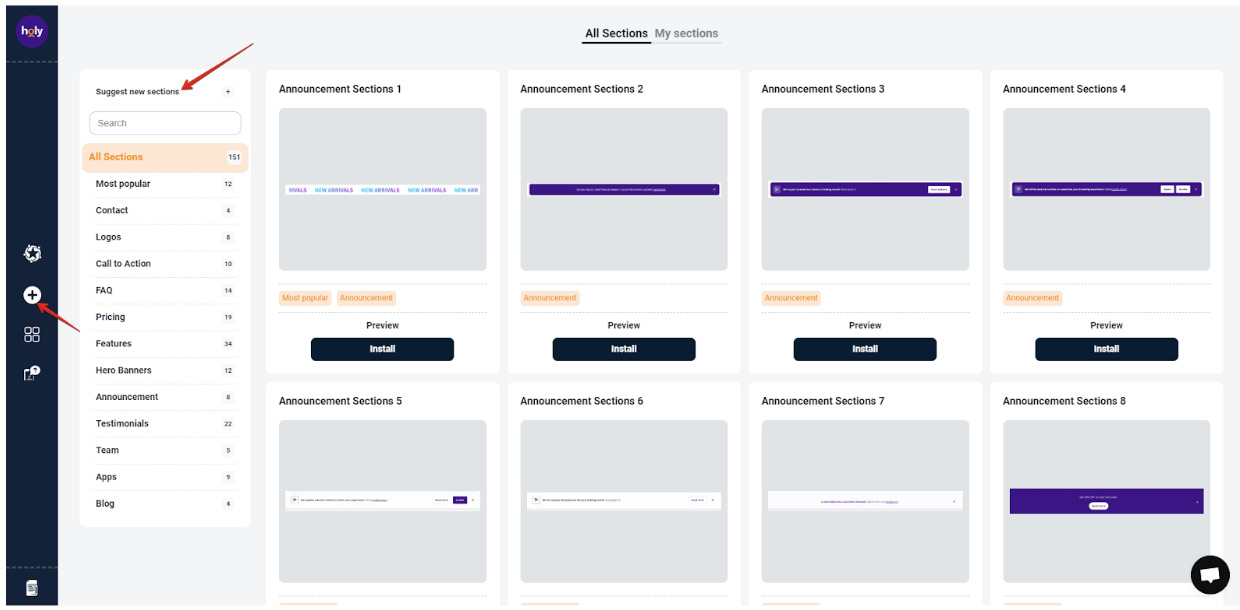
Being on Widget tab you can see all sections, they are divided by categories, so you can open separate category or use search to find necessary section.
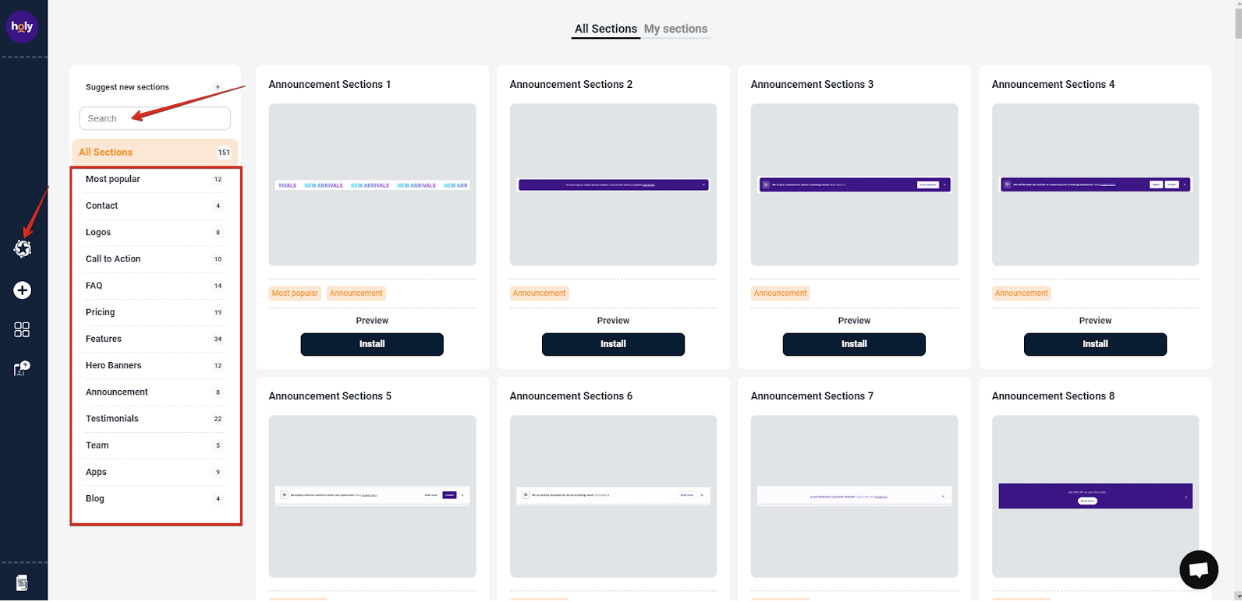
In every category you can find different templates, so the only thing you need to do is choose the perfect template for your website.

Clicking on the "Preview" button will help to increase the section and check specific details it contains.
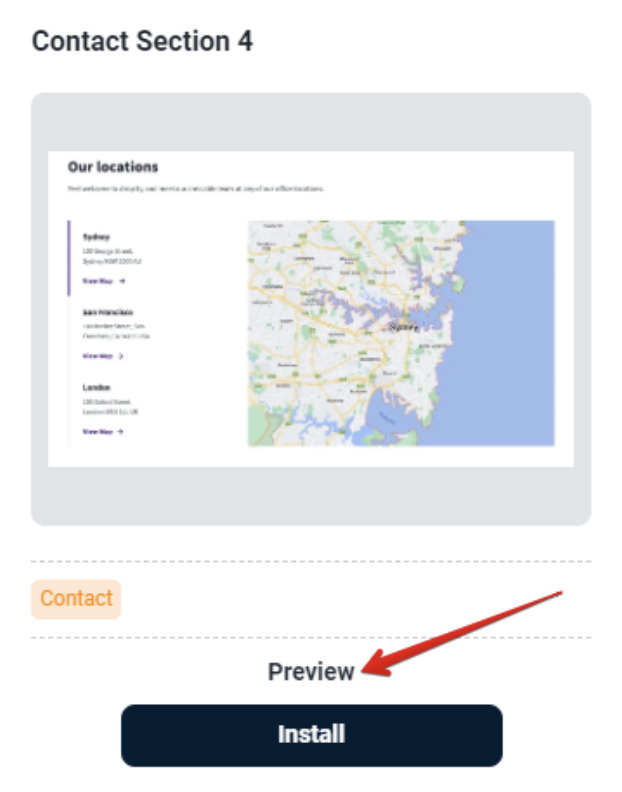
Once choice is made click on the "Install" button.

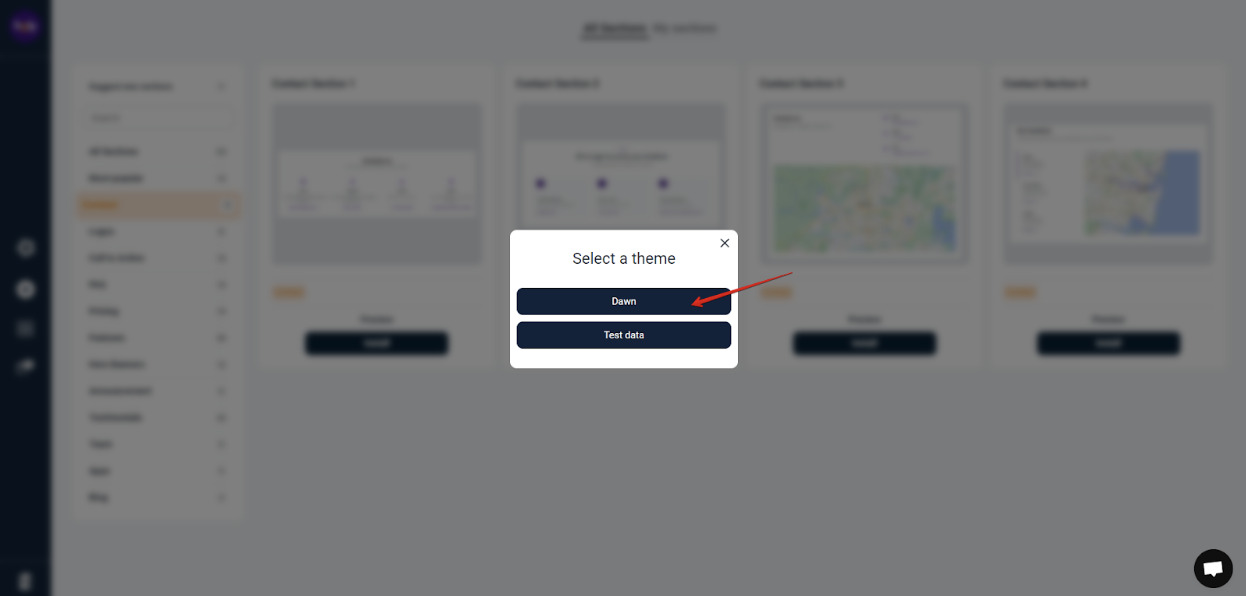
Select the theme to which you want to add a section.
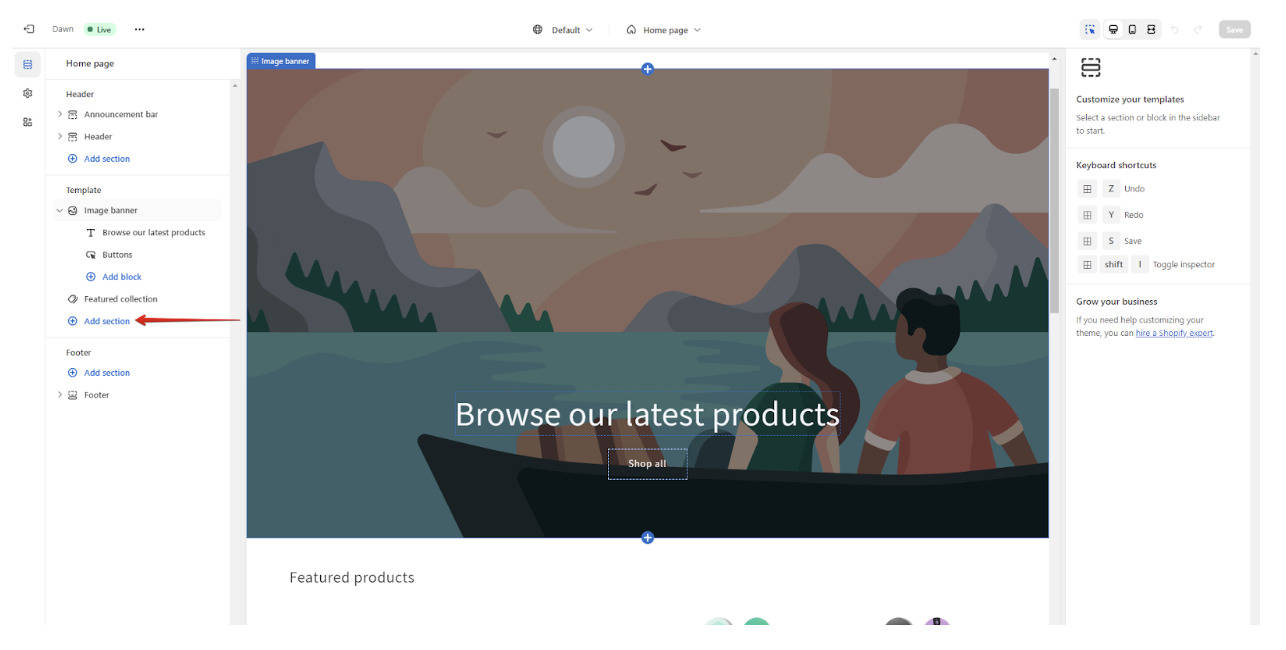
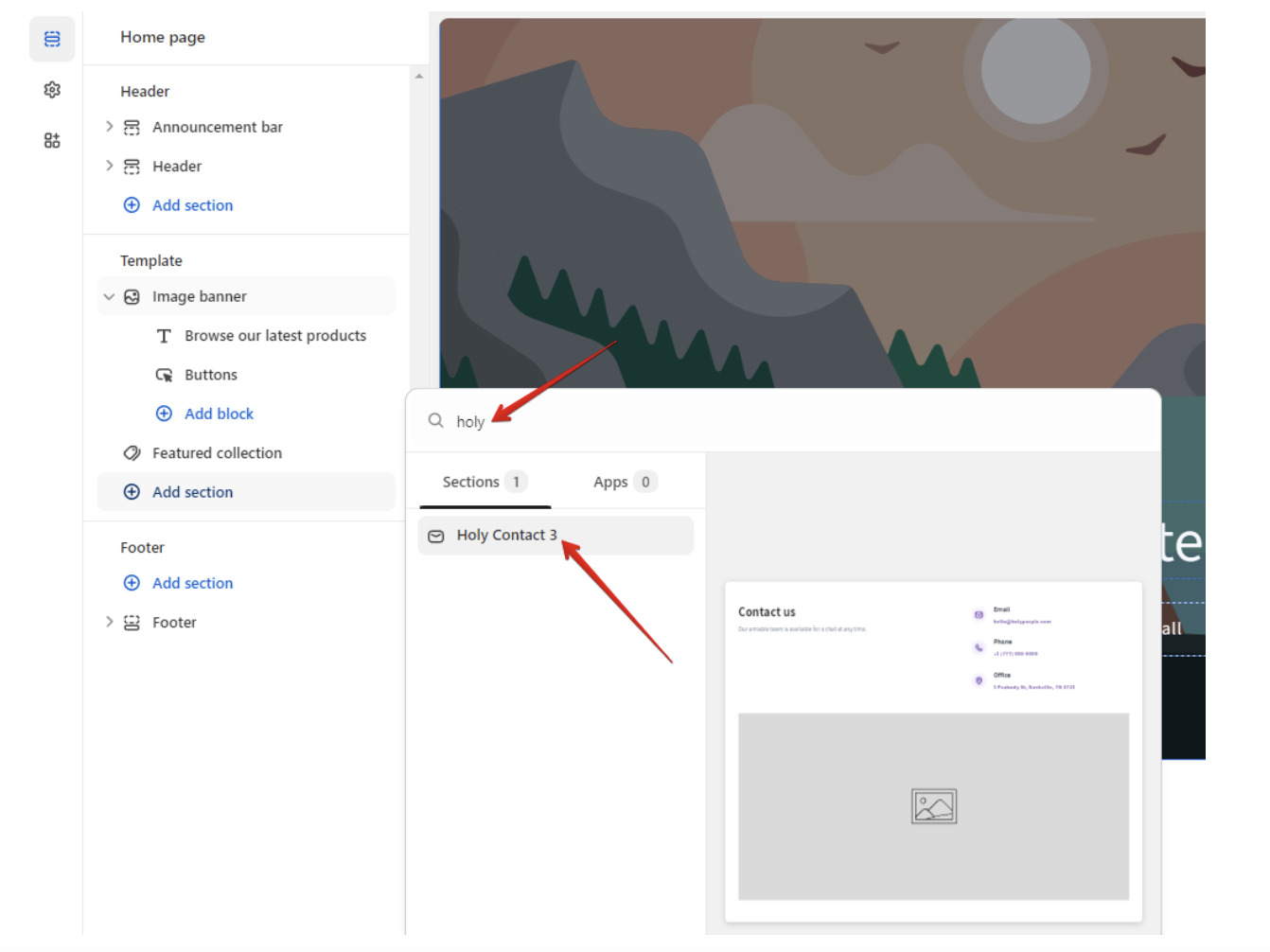
You will be redirected to your Shopify admin panel, so you need to choose page where you want to insert section and hit on "Add section".
Type "holy" in the search field and click on section that appears.
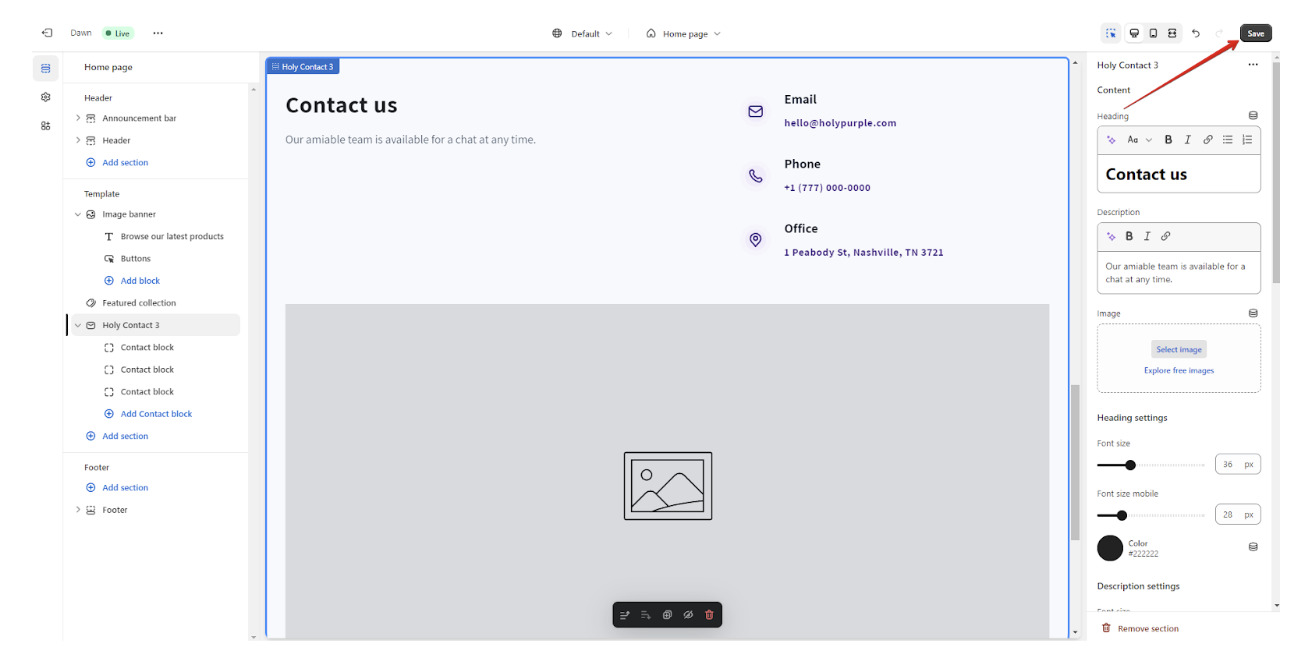
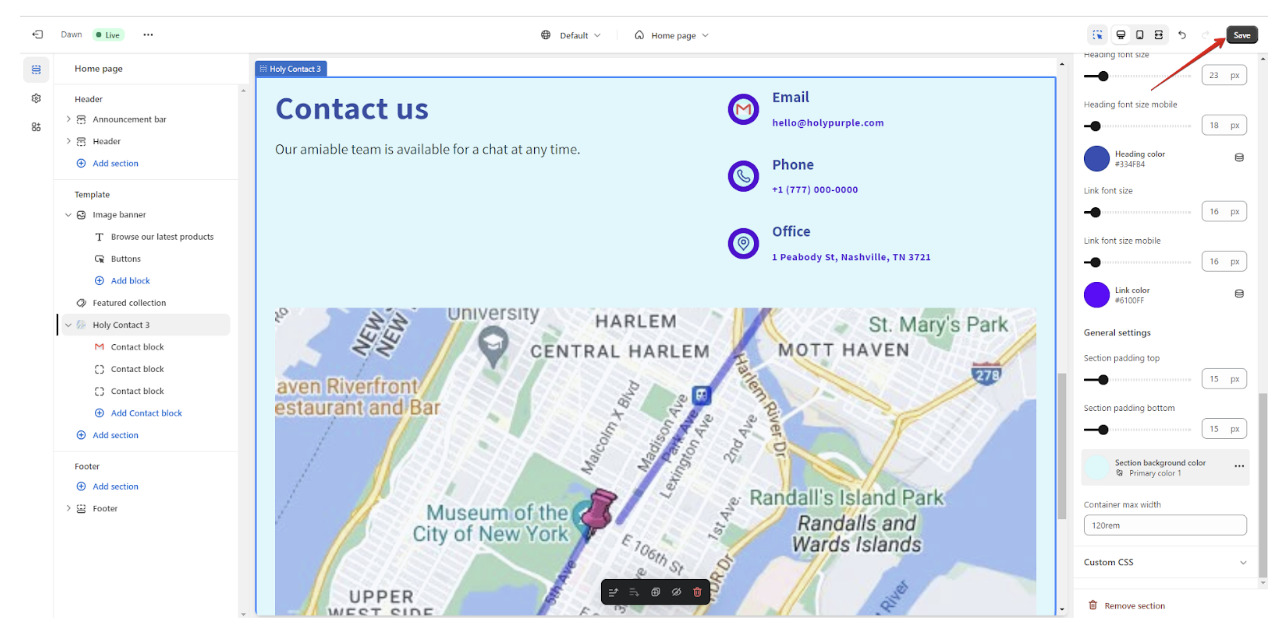
Congratulations! Section is added to your store. Do not forget to save it - click on the "Save" button in the top right corner.
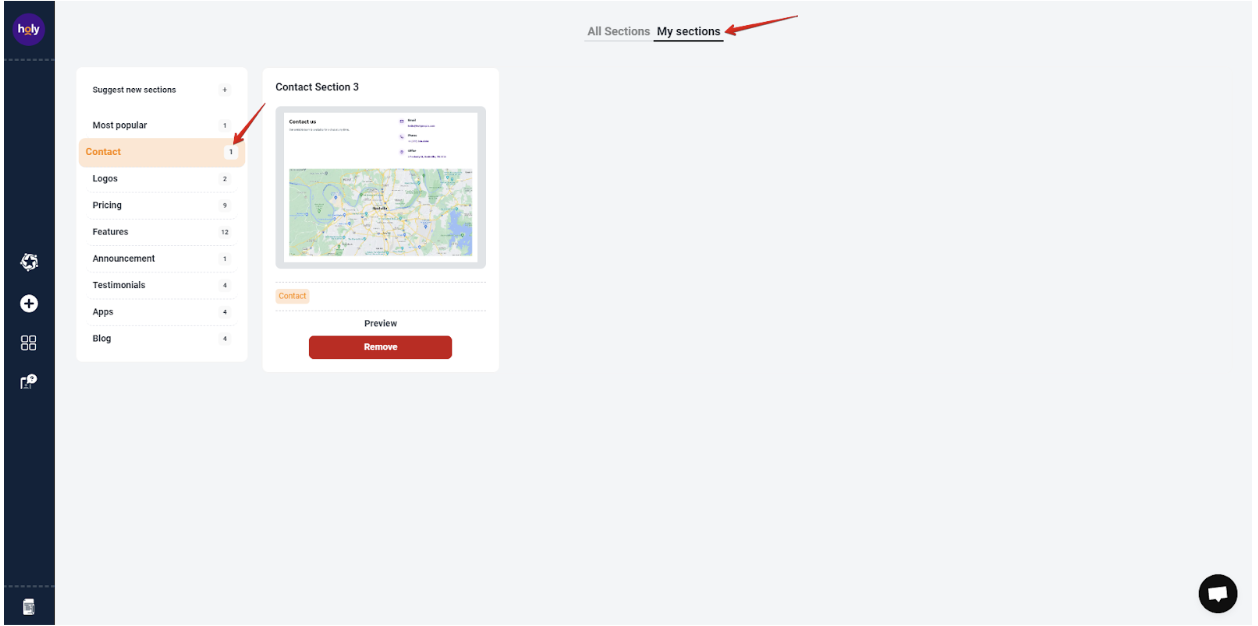
Also installed section will appear in "My sections" tab.
If you can't find what you are looking for, please contact us, and we will be happy to help.
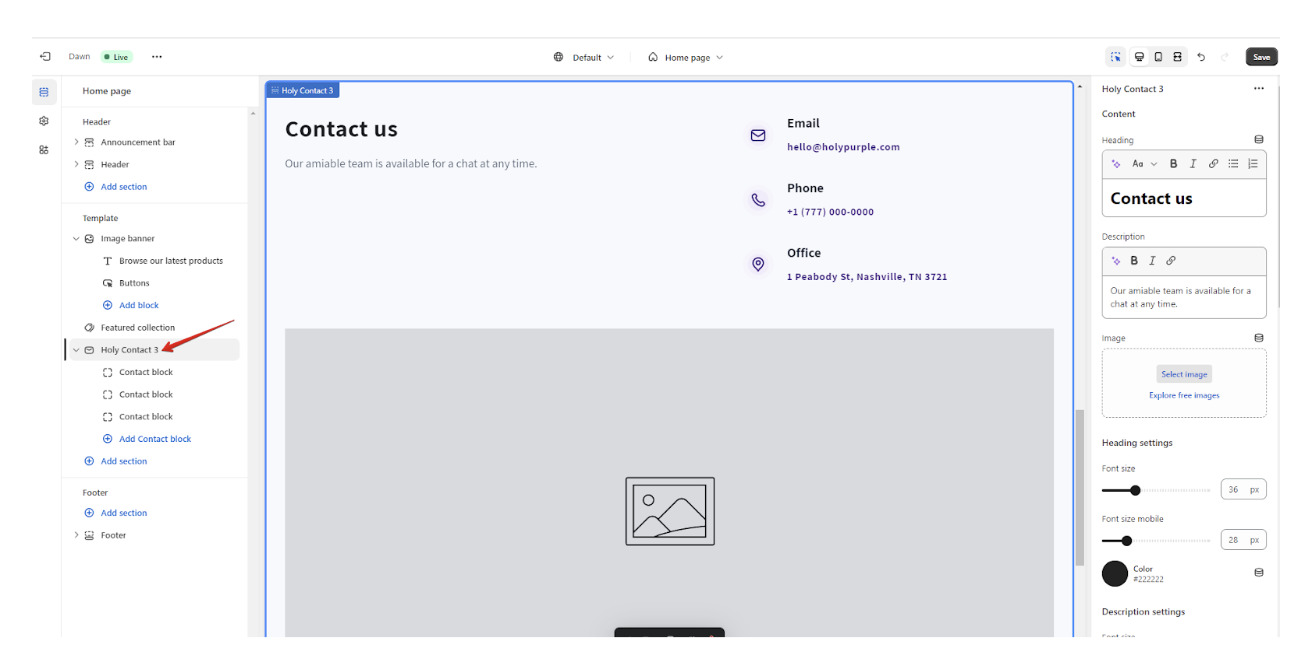
Once a section is added click on the section name to open the customizer and add the vibe of your website to the section.
Please note that changes in some sections with interactive elements like sliders, dropdowns can be visible after saving them.
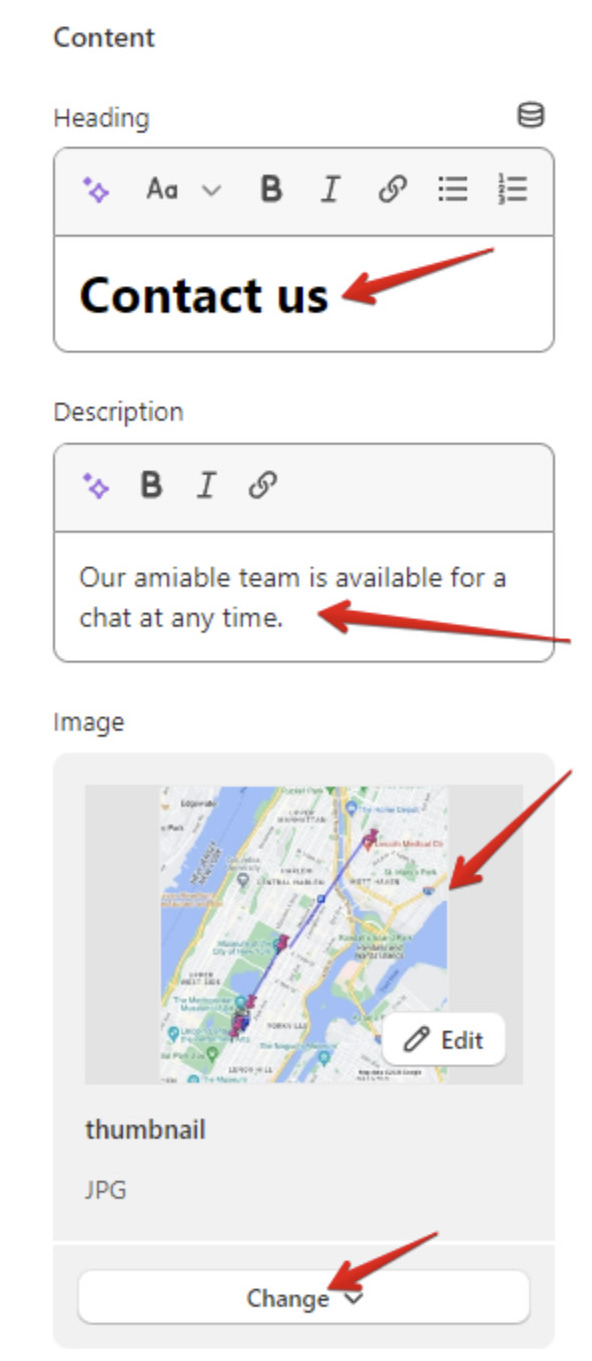
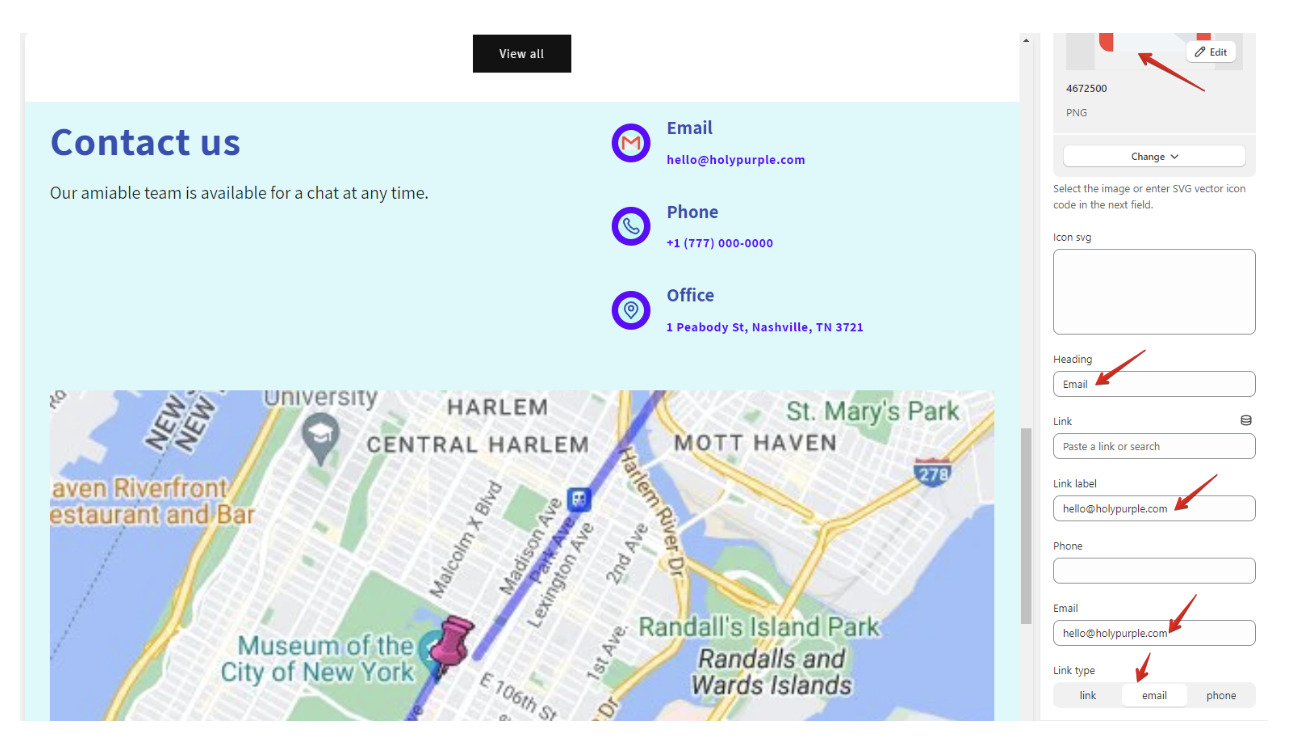
At the top change Content: add subtitle, heading, description, image, link, etc. (depends on section filling).
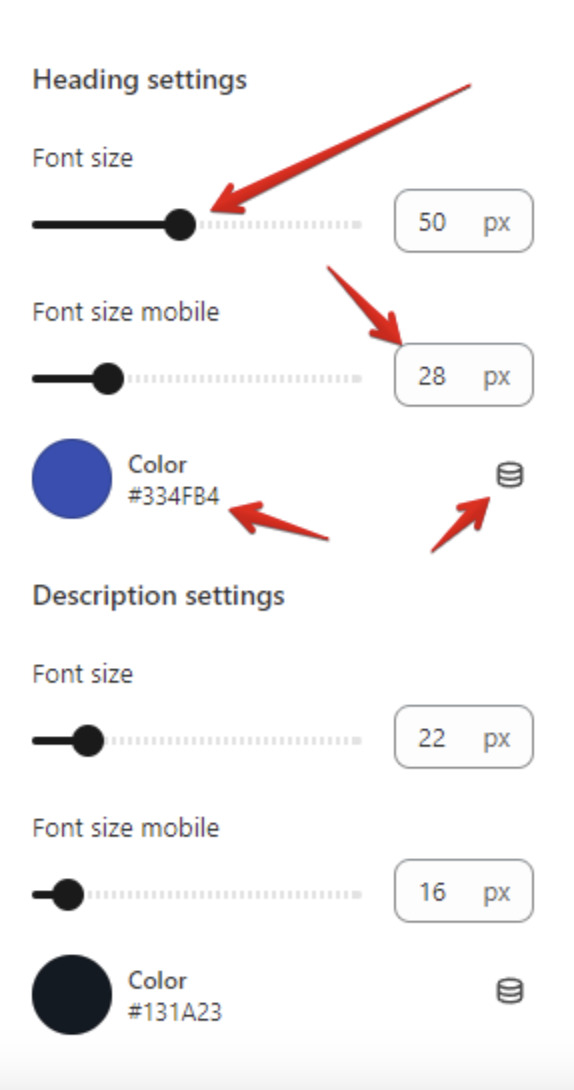
Customize content items in separate settings: modify font size, font size for mobiles, colors (can be selected with color picker or connected with dynamic source) etc.
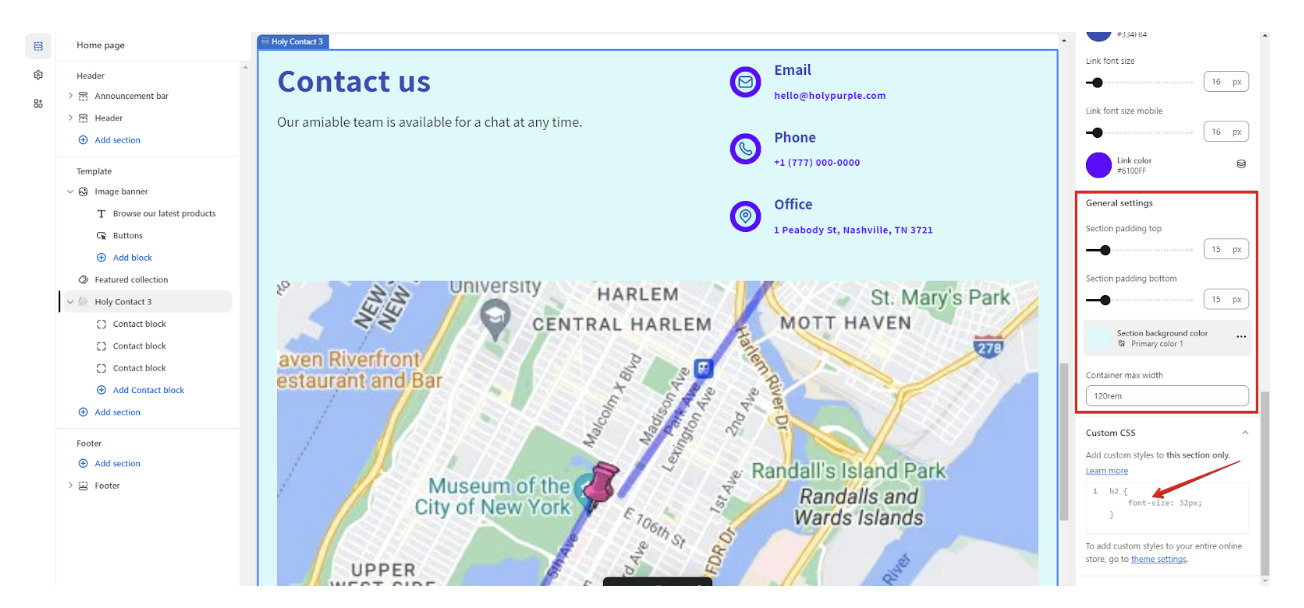
In "General settings" modify whole section styles and in "Custom CSS" add specific custom styles to this section only.
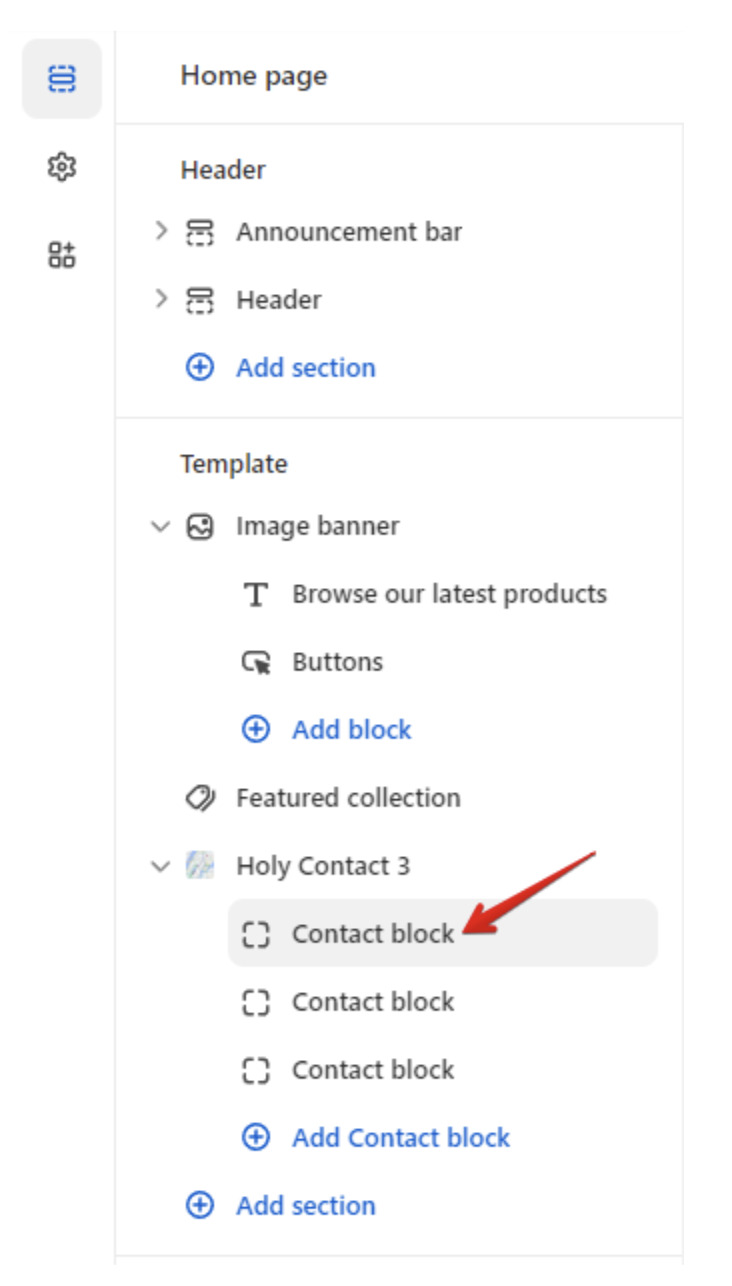
Click on every section block to change data there.
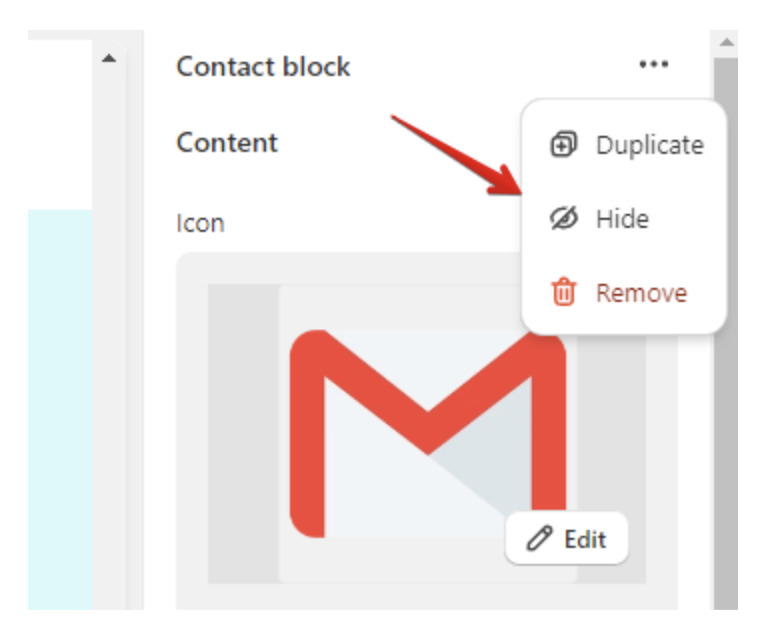
If you need add, hide or remove some block click on 3 dots in top right corner of the block and select option.
Check how it will look on mobiles, by clicking on mobile icon.

Once everything is up to you do not forget to click "Save" button to save your changes.
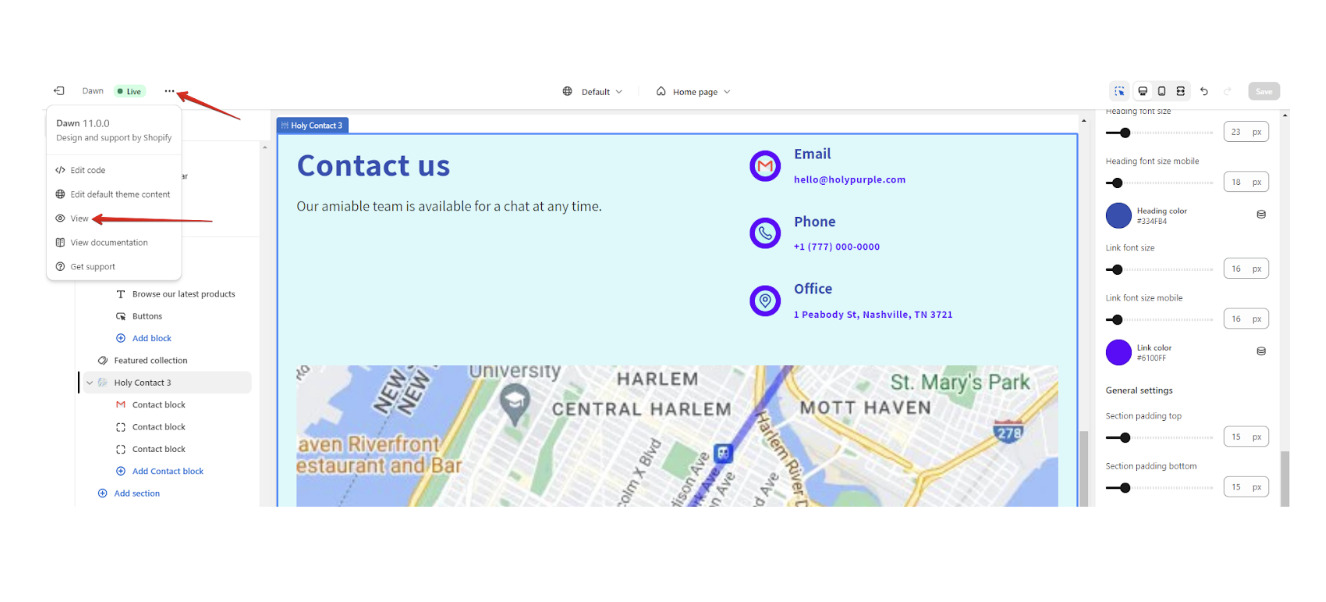
The last step is to check section on your store - click on 3 dots and choose "View".
If you can't find what you are looking for, please contact us, and we will be happy to help.
To suggest new section click on menu item "Suggest new sections" or being in widgets list on button "Suggest new sections".
While you are on this page you can find at the top bar three sections:
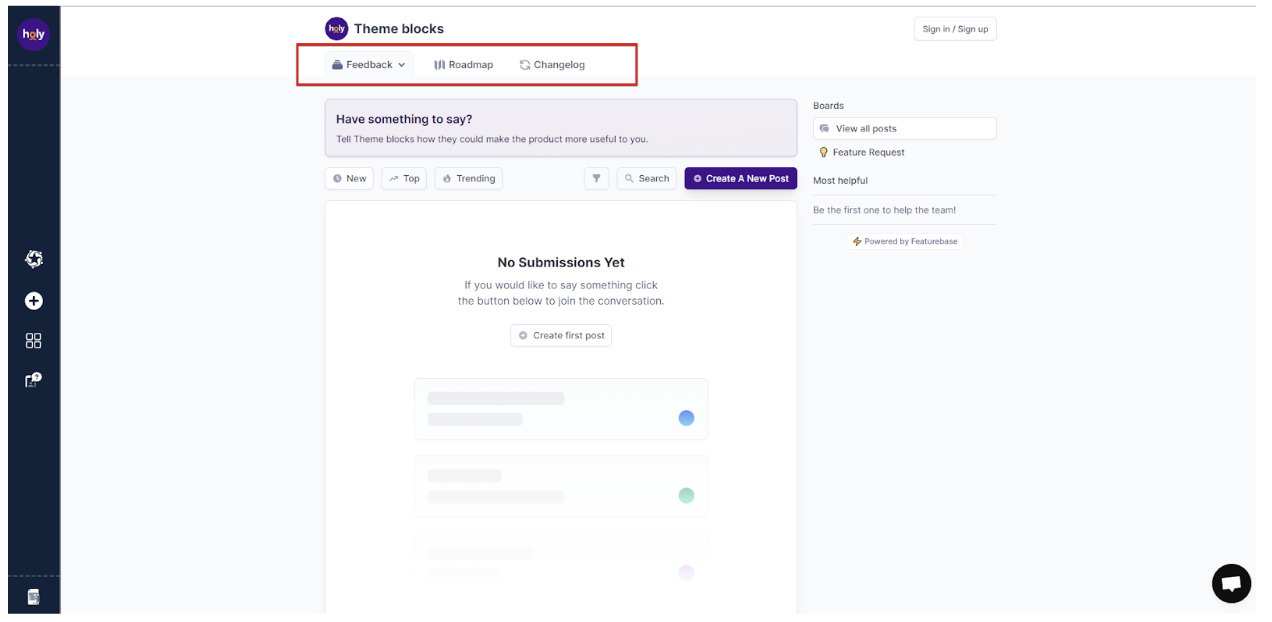
Other users of the app are able to see your post, vote for it and comment. To leave a comment under idea you should click on it and leave your comment at the commenting form.
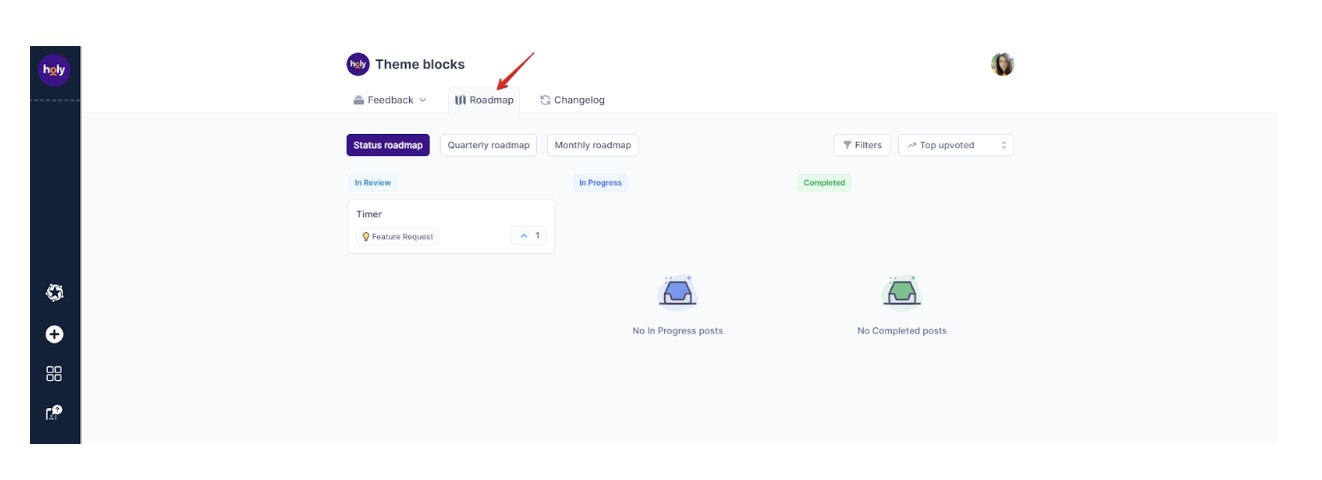
If you want to vote for the idea you liked, click on the element with a number inside it that is placed on the right side of the idea form.

You can use filters to find ideas with similar status, boards, tags or date.
If you can't find what you are looking for, please contact us, and we will be happy to help.
Thank you for using our application!We would like to be a part of your daily life for years to come. Here, we have collected almost every possible answer you are looking for.If you can't find what you are looking for, please contact us, and we will be happy to help.


